Unable to perform Windows Vista Update (Generic Issue w/ any error code)
Cause: Corrupted SoftwareDistribution Folder in C:\Windows.
Resolution:
- Disable Windows Update Service.
- Click Perl button and type services.msc and select services. Click continue for UAC prompt.
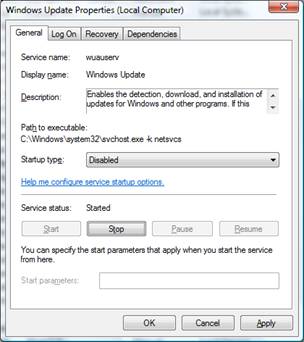
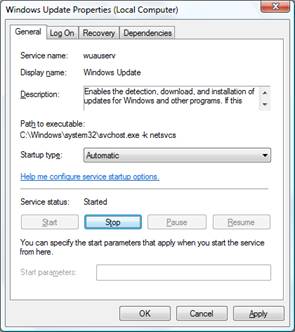
- In the Service Window, Select and right click Windows Update. Select Properties.
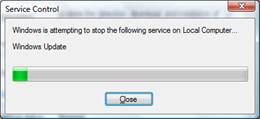
- In the properties window, Drop down the Startup type menu and select Disable. Then click stop button as shown in the screenshots below.
- Rename SoftwareDistribution Folder.
- Click Perl button and click Computer.
- In Computer, double click to open C:
- In C:, Double click to open Windows Folder.
- In Windows folder, Right click “SoftwareDistribution” folder and select Rename

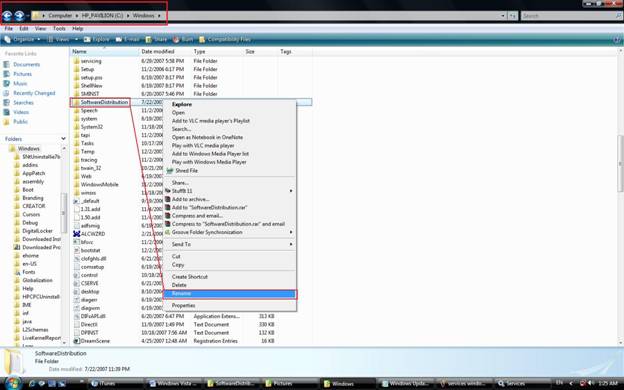
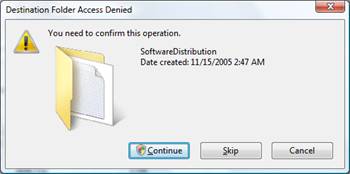
- Rename the folder as SoftwareDistribution.old. User will be prompted with a message similar to Destination Folder access Denied. Click continue to make the change. This is as shown below
.
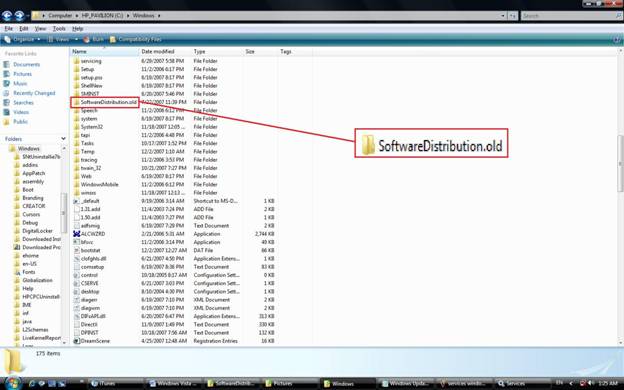
NOTE: Windows should automatically recreate “SoftwareDistribution” folder the moment user closes Windows folder and opens it again from C:
Proceed to Step 6 only if SoftwareDistribution folder is not created. Otherwise Step 6 is not necessary. - Create a new folder in C:\Windows and name the folder as SoftwareDistribution. (Name of the folder is very important and this folder will be empty).
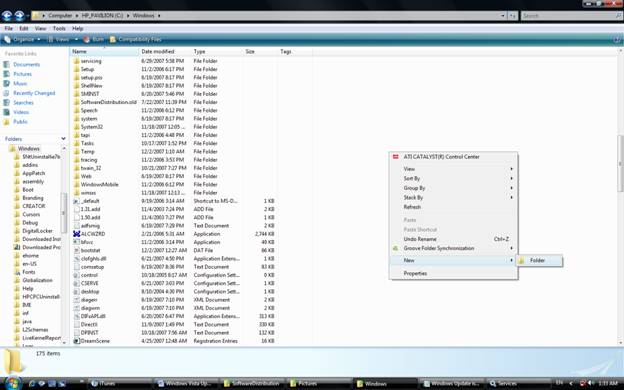
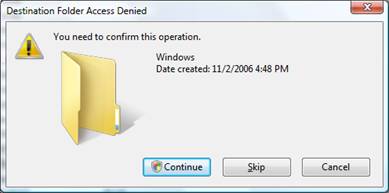
- Click Continue to proceed creating a new SoftwareDIstribution folder.
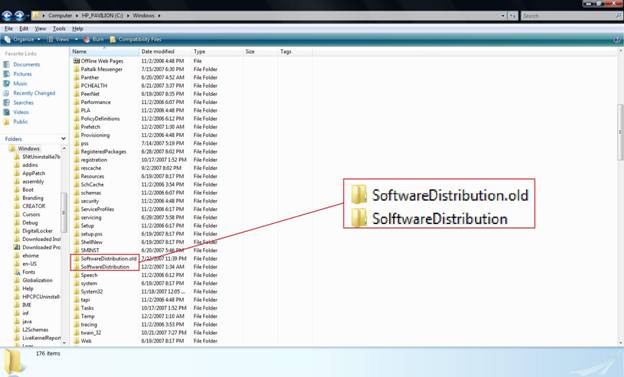
- Restart Windows Update Service.
- Click Perl button and type services.msc. Select services from the index search.
- In Services Window, Select and right click Windows Update. Click properties.
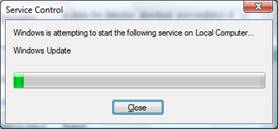
- In properties window, drop down the startup type as Automatic and click start button to start the service.
- Restart the PC and perform Windows Update again.
Caution: Above mentioned steps will clear the Windows Update View History Log on GUI.
TKB:1053